Getting Kavita + Komf Metadata Working (Without Losing Your Mind)


I run Kavita in Docker for manga and comics. Think Netflix for reading. Metadata scraping (information like author, illustrator, publisher, release date, etc.) should be easy, but in practice it’s confusing, under-documented, and most UI-first instructions do not match how Komf actually works today.
This post documents the exact steps I used to get:
- Kavita running cleanly in Docker
- Komf talking to Kavita reliably
- Metadata providers enabled
- Metadata matching triggered on demand with a single command
No guesswork. No UI clicking that silently fails.
Kavita (the server side)
I’m using Kavita as my self-hosted manga reader. If you’re not familiar with it, Kavita is an excellent open-source server for manga, comics, and ebooks that works beautifully with Docker and has solid client support.
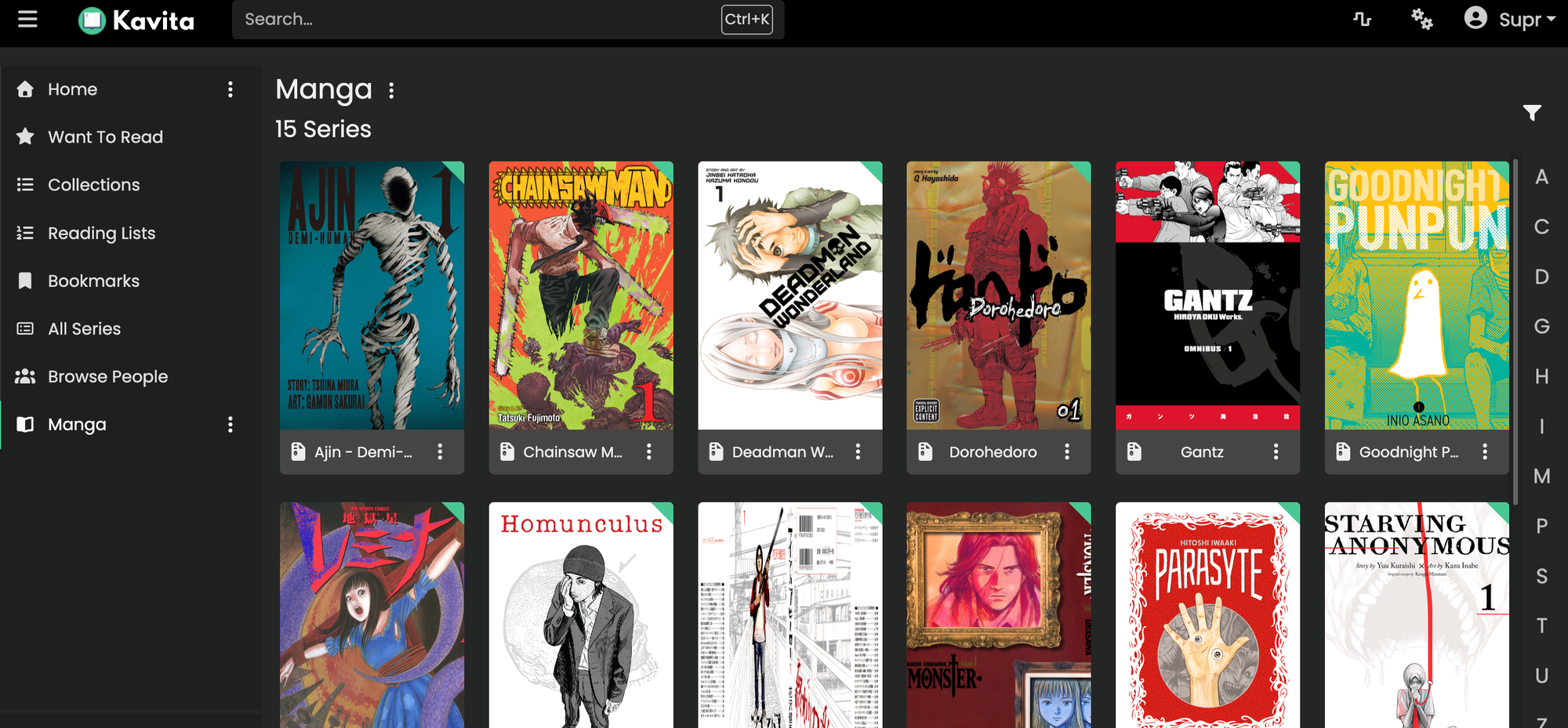
Official site:
https://www.kavitareader.com/
Kavita itself is not the problem. Library scanning is fast, the UI is solid, and client support is excellent.
Where things fall apart is metadata matching. Especially when your files come from mixed sources or don’t follow perfectly clean publisher naming conventions.
That’s where Komf comes in.
Panels on iPad Mini (the reason this was worth fixing)
This entire setup was motivated by rediscovering how good manga reading feels on the iPad Mini.
I’m using the Panels app on iPadOS, which is hands-down one of the best comic and manga readers available. It connects directly to Kavita, supports offline downloads, and actually feels designed for reading rather than server management.
Panels site:
https://panels.app/
On the iPad Mini specifically, it’s kind of perfect:
- Comfortable one-handed reading
- Excellent page scaling and panel handling
- Offline downloads for long, distraction-free sessions
Once Panels was up and running against Kavita, the weak link became obvious. A messy library is tolerable on desktop. On a small screen, it’s painful.
That’s what sent me down the Komf rabbit hole.
The Setup
Host: Debian (headless server)
Services:
- Kavita (Docker)
- Komf (Docker)
Storage:
- Manga stored on a large external drive
- Kavita config and Komf config bind-mounted
Docker Compose (Known-Good)
Here’s the working docker-compose.yml:
services:
  kavita:
    image: jvmilazz0/kavita:latest
    container_name: kavita
    restart: unless-stopped
    ports:
      - "5000:5000"
    volumes:
      - /media/Toshiba4TB/kavita/config:/kavita/config
      - /media/Toshiba4TB/kavita/manga:/manga

  komf:
    image: sndxr/komf:latest
    container_name: komf
    restart: unless-stopped
    depends_on:
      - kavita
    ports:
      - "8085:8085"
    volumes:
      - /media/Toshiba4TB/kavita/komf:/config
Key points:
- Komf talks to Kavita via Docker DNS (
http://kavita:5000) - No localhost hacks
- Config is persistent
Kavita API Key (This Matters)
In Kavita:
- Go to Settings → API Keys
- Create a key
- Copy it
You must use this key for Komf and for any manual API calls.
Komf Configuration (application.yml)
Create this file:
/media/Toshiba4TB/kavita/komf/application.yml
Contents:
kavita:
  baseUri: "http://kavita:5000"
  apiKey: "YOUR_API_KEY_HERE"

metadataProviders:
  anilist: true
  mangadex: true
  mangaUpdates: true
Then restart Komf:
docker compose restart komf
Sanity check
curl http://localhost:8085/kavita/providers
Expected output:
["MANGA_UPDATES","ANILIST","MANGADEX"]
If you do not see this, Komf is not reading your config.
Important Reality Check (UI vs API)
At this point:
- Komf does not expose a usable web UI for matching
- Kavita’s metadata matching UI is misleading
- Pasting provider URLs often does nothing
This is where most guides fall apart.
The reliable path is the Komf API.
The One Command That Actually Works
Trigger a full metadata match for a library:
curl -s -i -X POST "http://localhost:8085/kavita/match/library/1"
Where:
1is your Kavita library ID- The request returns
202 Accepted - Matching runs asynchronously
After a short wait, Kavita will populate:
- Series descriptions
- Covers
- Genres
- Authors
There is no progress bar. Just refresh and trust the process.
Making It Human (Alias FTW)
Typing that curl command every time gets old fast.
Edit your shell config:
nano ~/.bashrc
Add:
alias rescan-manga='curl -s -i -X POST "http://localhost:8085/kavita/match/library/1"'
Reload:
source ~/.bashrc
Now you can simply run:
rescan-manga
That one command replaces:
- Broken UI workflows
- Guessing which provider to pick
- Manual series matching
Why This Approach Works
- Deterministic results
- Scriptable and automatable
- UI-independent
- Docker-friendly
- Perfect for headless servers
It fits cleanly into a self-hosted, API-first setup.
Final Thoughts
Kavita is excellent.
Komf is powerful.
Nyaa.si is a godsend.
But the integration assumes knowledge that is not written down anywhere.
If metadata matters to you, treat Komf as an API tool, not a UI tool.
Once you do that, it just works.
If Future Me breaks this setup, this post is for you. Good luck 🤝